
Halloween AI Video Generator: Animate Your Costume Photo
A still costume photo can become a short cinematic clip. The image-to-video workflow takes your generated portrait as the first frame and adds controlled motion: a head turn, drifting hair, fog, or a slow camera push.
- Image-to-video from one portrait
- Short, controllable motion
- Cinematic Halloween atmosphere
Hosted image and video routes show the model and credit cost before you generate.
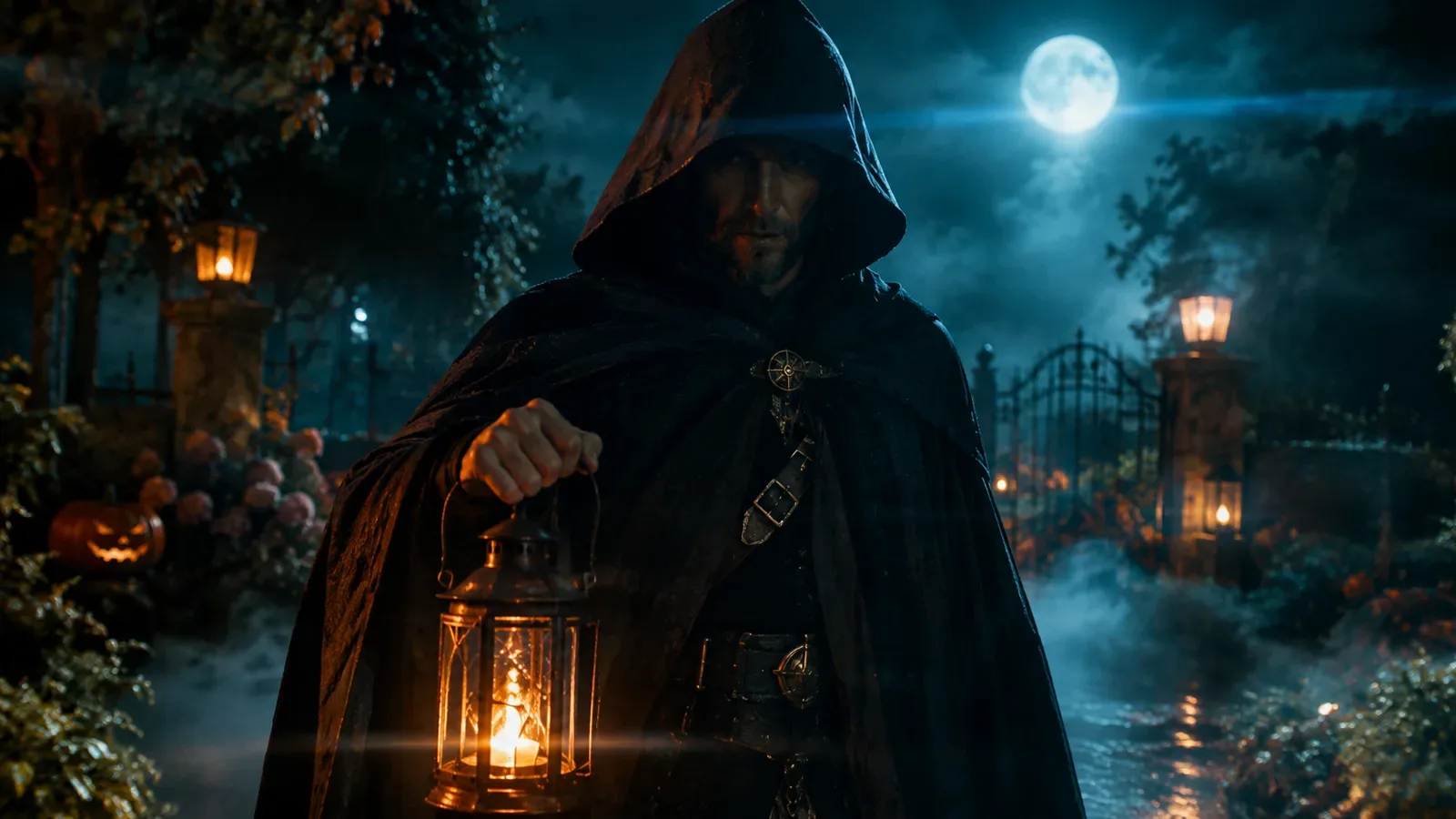
This guide covers the motion recipes that work best for Halloween portraits and the prompt structure that keeps the face and costume consistent.
What image-to-video does
Image-to-video uses your image as the starting composition. The model generates a short clip that continues from that frame. It is not a full animation suite; it is a way to add life to a portrait.
The best source image is sharp, well lit, and has a clear subject. If the portrait is already blurry or has distorted hands, the video will amplify those problems.
Four motion recipes
Keep the motion small. A subtle head turn reads as cinematic; a large movement often breaks the face. Pair one subject movement with one atmosphere movement, not five.
These recipes work for a single portrait and a five-second clip.
- Slow head turn toward the camera with a mysterious expression.
- Hair strands drifting in a gentle breeze while the body stays still.
- Fog rolling through the scene with a slow camera push-in.
- Candle or lantern flicker changing the light on the face.
How to write the video prompt
Start by locking the reference: use the provided image as the exact visual reference and keep the face, costume, hairstyle, and body proportions consistent. Then describe the motion in one sentence.
Add the camera move and the atmosphere. Finish with exclusions: no identity change, no costume change, no extra characters, no sudden scene cuts, no text, no watermarks.
| Block | What to write | Example |
|---|---|---|
| Reference | Lock identity and composition | Use the image as the exact first frame |
| Motion | One subject movement | Slow head turn toward camera |
| Atmosphere | One environmental change | Soft fog drifts through the garden |
| Camera | Slow and stable | Slow push-in, no cuts |
| Exclude | Artifacts | No identity change, no extra people |
Step-by-step
Open the video generator and choose image-to-video. Upload the costume portrait, paste the motion prompt, and select the clip length and resolution. The workspace shows the credit cost before you generate.
If the motion is too strong, shorten the prompt and remove the camera move. If the face drifts, add a stronger identity lock and reduce the head rotation.
What to expect
Short clips work best for social posts, previews, and mood boards. They are not a replacement for a full video production. The model may still produce small artifacts in hands, jewelry, or fine fabric details.
Generate a still first and approve it before animating. That saves credits and gives the video a stronger starting frame.
Prompt recipes
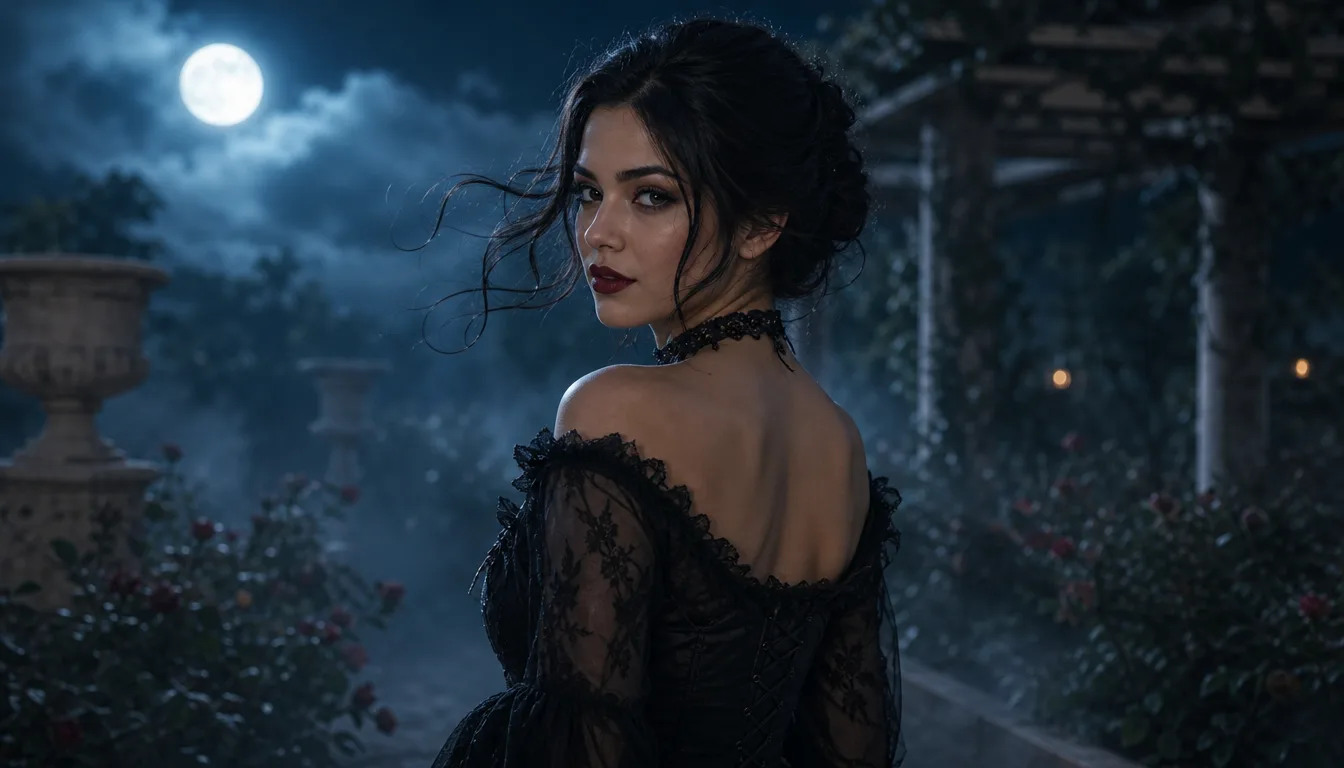
Midnight garden motion recipe
Use the provided image as the exact visual reference and starting composition. Create a continuous five-second cinematic Halloween portrait animation. Keep the subject's recognizable face, costume, hairstyle, and body proportions consistent. The subject slowly turns their head toward the camera with a subtle mysterious expression. A gentle breeze moves loose hair strands and the edges of the clothing. Soft fog drifts through the moonlit garden. The camera performs a slow, smooth push-in. Realistic motion, stable anatomy, consistent lighting. Do not change the person's identity, replace the costume, add characters, or introduce sudden scene cuts. No text, no watermarks.
Frequently asked questions
How long is a generated Halloween video?
The workspace supports short clips; the available length depends on the selected model. Five seconds is a good starting point for a portrait.
Can I animate a photo I edited?
Yes. Use the edited portrait as the source image. A sharp, clean portrait produces a more stable clip.
Why does the face change in the video?
Large motion or a weak reference line can cause drift. Reduce the movement and explicitly lock the face, costume, and proportions.
Does it generate audio?
Audio support depends on the selected video model. Check the model options in the workspace before generating.
How much does a clip cost?
The workspace shows the credit cost for the selected model, length, and resolution before you confirm.
Related guides
Halloween AI guide
AI Halloween Costume Generator: Turn a Selfie Into a Costume
Turn a selfie into an original Halloween costume with AI image editing on mogged.games. Try five costume recipes, copy the prompts, and generate.
Read guideHalloween editing guide
Halloween AI Photo Editor: Spooky Edits From One Photo
Use the Halloween AI photo editor on mogged.games to change costumes, add fog, relight a portrait, and keep the face recognizable. Copy a recipe and try it.
Read guideBlack Friday guide
AI Video Generator Black Friday 2026: What to Check
Black Friday 2026 is November 27. Compare AI video generator deals, credit costs, and refund terms before you buy, then check mogged.games current pricing.
Read guideReady to try it?
Animate a Halloween costume photo with AI image-to-video on mogged.games. Use short motion prompts for a head turn, drifting fog, and cinematic light.
Updated: